




One of the most frustrating feelings is when your iPhone starts running low on storage, causing a myriad of problems and adding a lot of mental pressure.
An iPhone that’s run out of storage can start lagging, run out of battery faster, and more. That’s why it’s always a good idea to be diligent and ensure you leave some extra space on your device so it lasts longer and doesn’t give you a hard time. When people think of maintaining good storage levels, they often start to look at their photos or apps. But you should be looking at your settings as well. Read more about the setting tech pros say you should turn on to help keep your storage from filling up below.

Women Are Swapping Their Boring Water For This Ice Pop Electrolyte Mix!

The One iPhone Setting You Should Use To Help Clear Storage
There are a lot of things that could be going into an iPhone running out of storage, from its age to the amount of photos you have, and more.
Although your device, through its storage settings, can tell you what's contributing to it, it can feel overwhelming to solve. After various attempts to delete things and make room, if your phone is still running out of space, it can be tempting to purchase a larger iCloud or storage plan. However, before you do that, it's important to check your settings to make sure you're optimizing your experience.
One setting tech pros swear by is the Offload Unused Apps setting, which can help ensure that apps that've gone unused on your device don't clog it up.
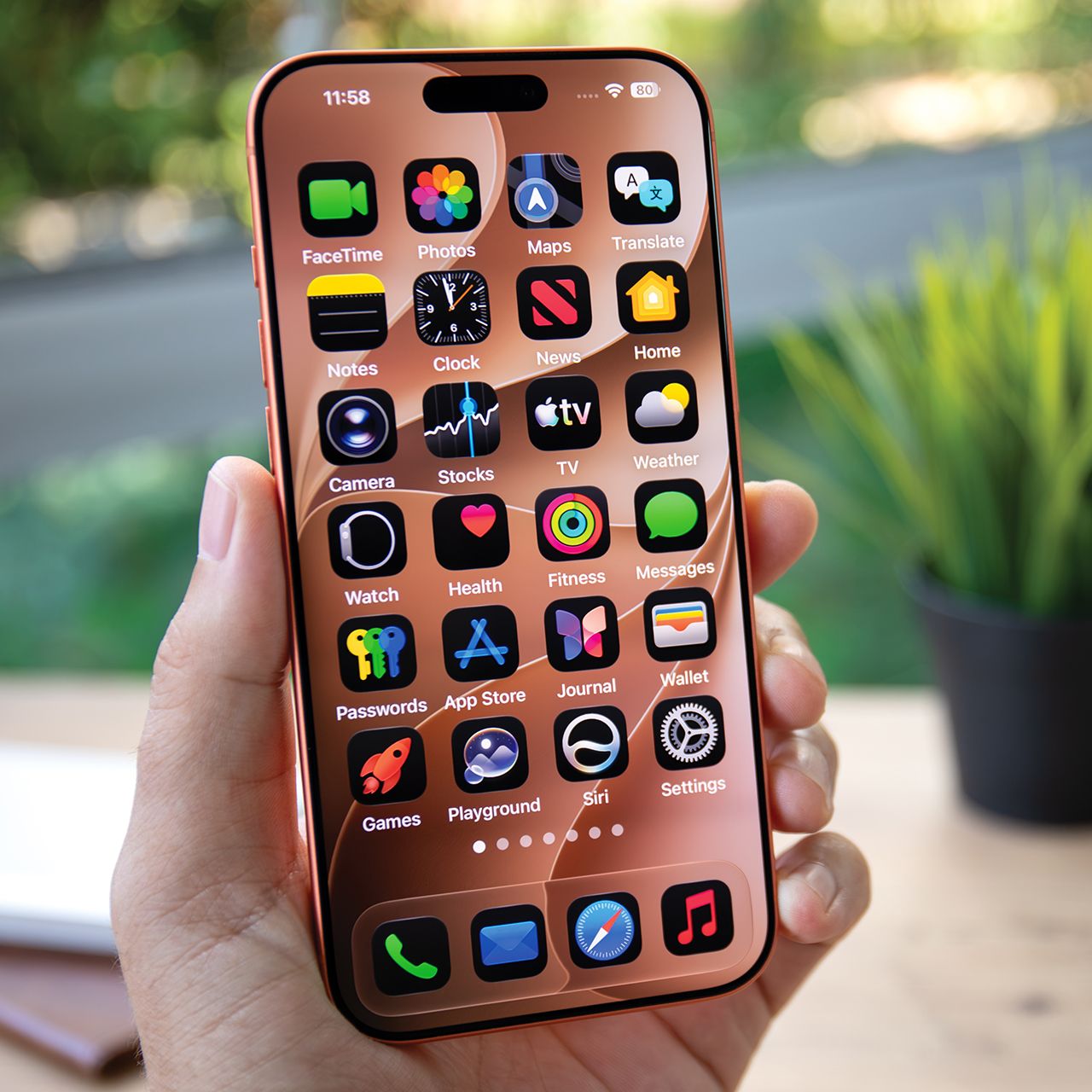
"Apps you opened once in 2021 and forgot about are still living rent-free in your phone's head and slowing things down," says tech pro Sam Devia. "They take up storage and background resources even when you never touch them. To fix this, go to Settings, then General, then iPhone Storage, and turn on Offload Unused Apps. The icon stays on your home screen, and if you ever need the app again, it will download automatically."
Once you ensure that this setting is on, you can rest easily knowing that the apps you don't use often but don't want to delete will retain your data, but at the same time, will no longer take up excess room on your phone until you pick them back up again.