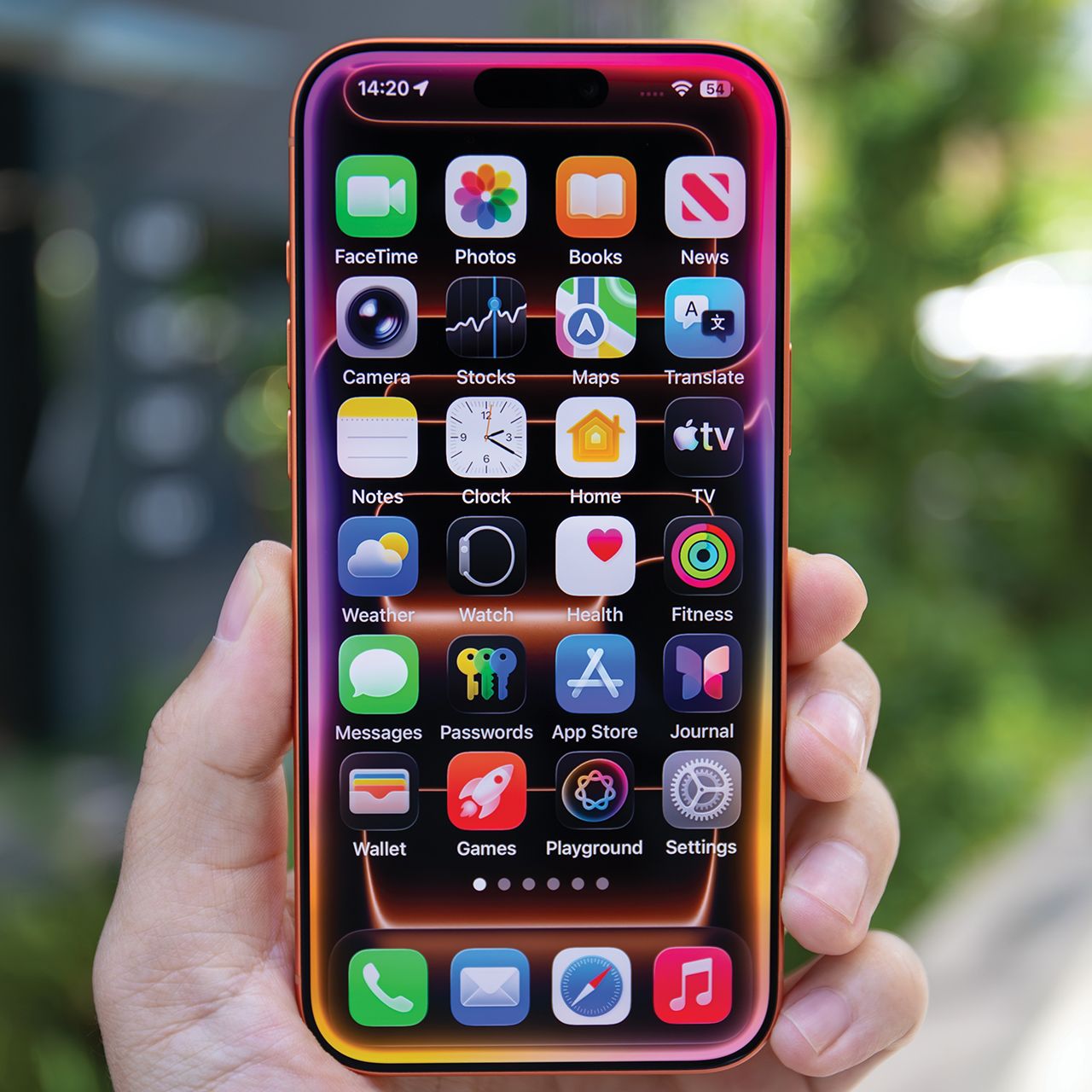





Tired of your phone stalling every time you need it to work for you? There are a number of reasons why your phone may not be running as swiftly as it once did — including the possibility that you may need a new battery. But if your phone is relatively new and still giving you a headache, there are four settings you didn’t know could make your iPhone run SO much faster. Try changing these settings and you might just experience a new and improved smartphone experience.

Women Are Swapping Their Boring Water For This Ice Pop Electrolyte Mix!

Storage and iCloud Usage
One of the most obvious reasons why your phone is so slowly lately is because its storage capabilities are filled to the brim. You can purchase more storage — or you can do some spring cleaning and delete some of the bigger files (like video and photos) that are taking up storage.
Your first step is taking advantage of the setting that clues you into your storage needs. Go to Settings > General > Storage & iCloud Usage and select Manage Storage. This will pull up a chart of what’s eating away at your storage — from here you can make an informed decision on what to delete and what to keep.

Update Apps
Running older versions of apps is a battery drain. Luckily, there’s a simple remedy: open the App Store app, tap Updates, and tap Update All.

Turn Off Automatic Updates
Allowing your phone to update your apps in the background can be a convenient service, but it’s one that comes with a cost: it occupies your phone’s CPU and battery, according to Cnet. Here’s how to change that: go to Settings > iTunes & App Store and tap the toggle switch to turn off Updates.

Turn Off Background App Refresh
Another convenient setting — background app refresh gives apps an opportunity to refresh while you’re off doing other things so that they are ready for you when you’re ready to use them. A nice gesture, but one that consumes a lot of battery power.
Go to Settings > General > Background App Refresh and toggle the setting off.