



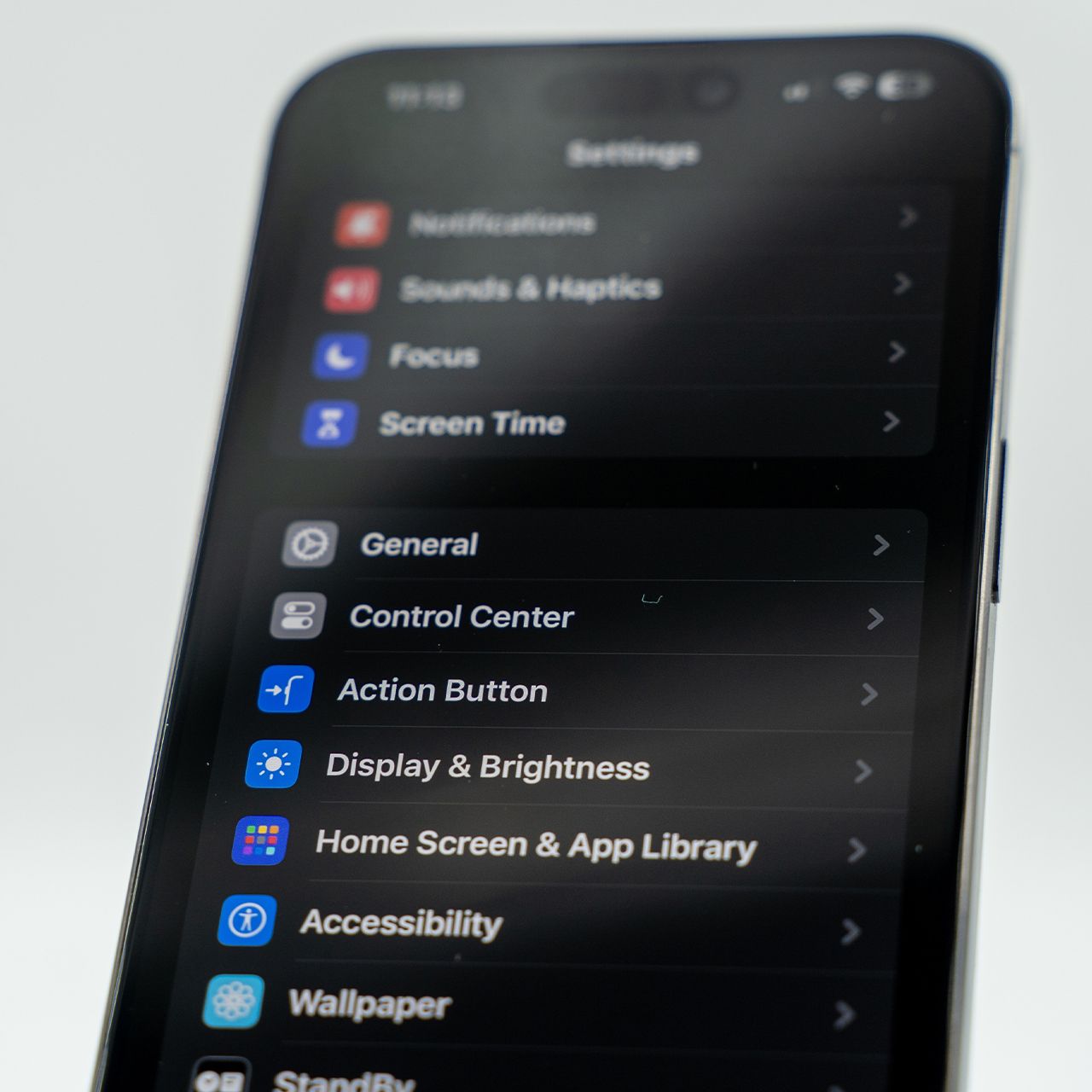
If you’re struggling with a slow iPhone, chances are, there are some settings you should be looking at that you might’ve been ignoring.
Over time, even the fastest iPhones can start to feel slower as apps, animations, and things working in the background start to pile up. When your phone starts to slow down, it’s easy to assume you need a new device. But before you do that. experts say checking a handful of useful settings can improve performance and help certain functions feel smoother. Read more about three iPhone settings tech experts say are worth checking if your device isn’t running as quickly as it used to below.

Women Are Swapping Their Boring Water For This Ice Pop Electrolyte Mix!
1. Reduce Motion Effects
An iPhone's animations and visual effects create a fancier, aesthetically pleasing user experience, but they can also make your device feel less responsive over time. Reducing motion effects lessens these animations, helping your iPhone feel faster as you use your apps and move between screens.
"Most Apple products come with visual motion enabled to make for a visually smooth experience (when you're swiping between apps, etc.)," explains tech marketing pro Aimee Simpson. "While these create a nicer experience for the user, they can eat into your workload, occupying your graphics chip and processor. Enable Reduce Motion, and that'll be significantly less of a strain on your device. As a side note, this is even more necessary with newer iPhones with the liquid glass effect."
1. Delete Or Offload Unused Apps
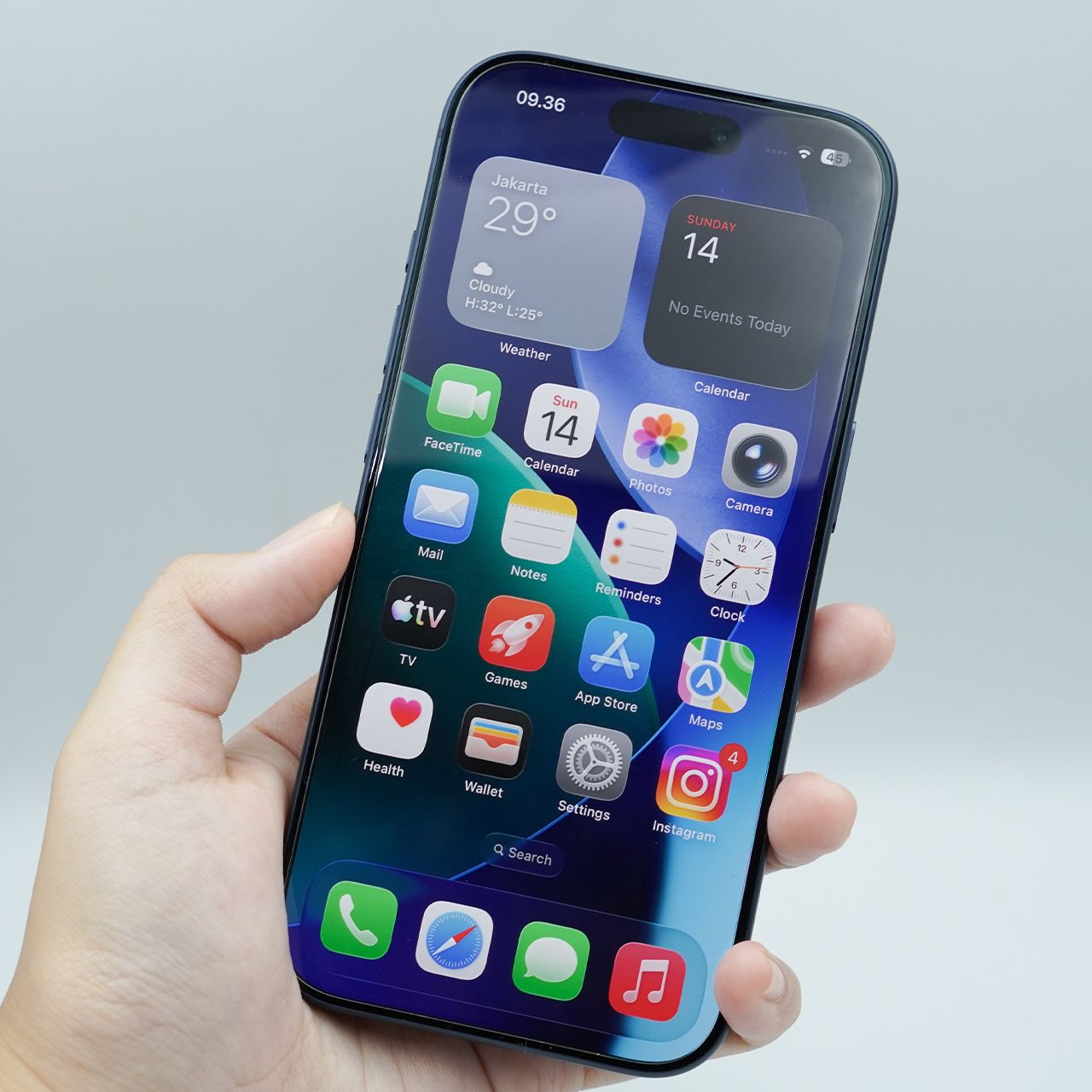
If your iPhone is constantly warning you that storage is almost full, checking your unused apps can be an easy place to start. The iPhone's storage settings let you delete apps you no longer need or offload apps to free up space while keeping their documents and data, making this a simple way to reclaim storage without manually going through every file on your phone.
"Apps are often one of the biggest storage drains we see, particularly games, social media, and video apps," says smartphone repair specialist and tech pro James Waterson. "I'd start in Settings > General > iPhone Storage, because Apple shows exactly how much space each app is consuming. If there's an app you rarely use, offloading it is a good first option because it removes the app itself while retaining its documents and data, so you can reinstall it later without necessarily starting from scratch."

3. Low Power Mode
This setting is a game-changer, as it not only can help improve your iPhone's speed and performance but also preserves your battery life, keeping it healthy over time. Although it's designed to extend battery life, Low Power Mode also reduces background activity and certain visual effects that can slow your device down.
"Although low power mode provides many benefits, including extended battery life by limiting some background applications and system functions, it can occasionally cause issues related to responsiveness," adds Ijlal. "Once you've turned off low power mode, you should see an improved response time from your iPhone; however, you can anticipate that your battery will now drain faster."