




Every time you get that “Storage Almost Full” notification on your iPhone–or worse: the “Cannot Take Photo” one, gasp!–don’t you just feel like your phone owns you and not the other way around? There’s something very tethering (literally) about being forced to transfer or delete your precious data before you can keep snapping pics. Can I live??
Plus, your phone likely prompts you to check your Settings to fix the problem, but do you even know where to begin? We’ve got the 2-second tricks steps for freeing up storage space right away. Then you can stop getting the notifications every five minutes. And we really want that for you.

Women Are Swapping Their Boring Water For This Ice Pop Electrolyte Mix!

The answer is to go to Settings > General > iPhone Storage, and scroll down to see which apps use up the most storage space in descending order.
Some entertainment apps such as TV, iMovie, Photos, Spotify, Pandora and others will appear at the top of your data hog list. For those apps, you can elect to Review the data inside the app.
For example, you can look at which TV episodes you have saved within the TV app that are taking up the most data Likely, if you've already watched an episode, you can delete it. Same goes for movies you've watched or podcasts you've downloaded. Just know that if you delete the content it will no longer be available for offline playing.

Additionally, for apps like Messages, there are work-arounds to limit the data usage without deleting them completely. For Messages, you can choose to "Auto Delete Old Conversations" or "Review Large Attachments," meaning that you can see which attachments within conversations are using up the most data and choose to delete them one by one.

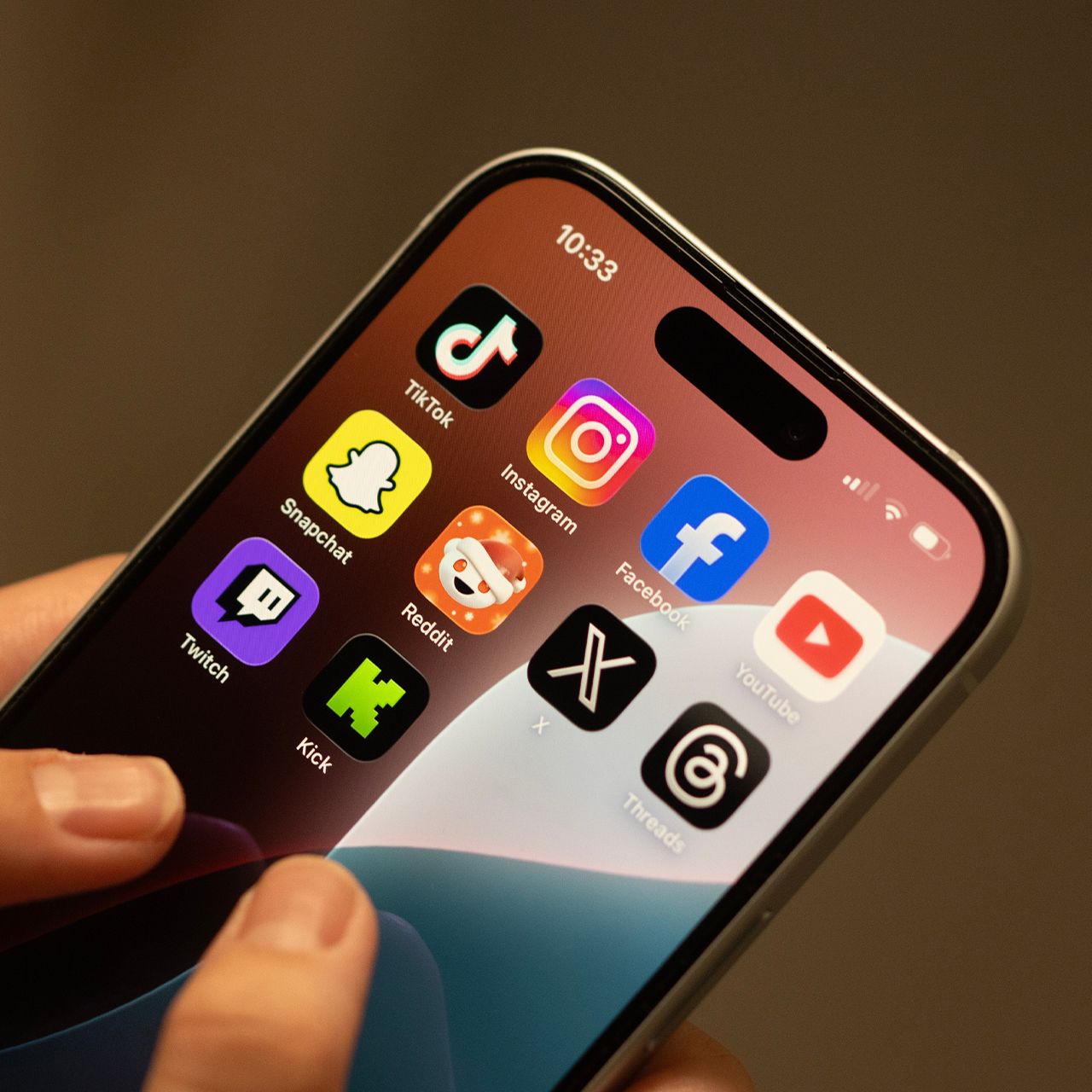
For social media apps, it's a different story because there likely isn't an option to delete data within the app. To start, I didn't have many apps on the top of my storage list, nor did my SheFinds co-workers that I polled for this story. But that doesn't mean there aren't offenders on your phone. Snapchat and Facebook are widely reported as using up hundreds of gigs.
The good news is that you don't need to fully delete them (even though I'm sure you could use a social media detox, just sayin'). Your first step can be to "Offload App," which will free up storage used by the app, but keep it's documents and data. According to the Settings, reinstalling the app will place back your data if the app is still available in the App Store (unlike deleting the app, which removed all data related to the app from your iPhone and can't be undone).

So, there you have it. In a few simple keystrokes, you can forever silence your phone's constant storage reminders. Now, wouldn't that be freeing?
READ MORE: The One App You Should Delete ASAP If Your iPhone Battery Is Always Dying