




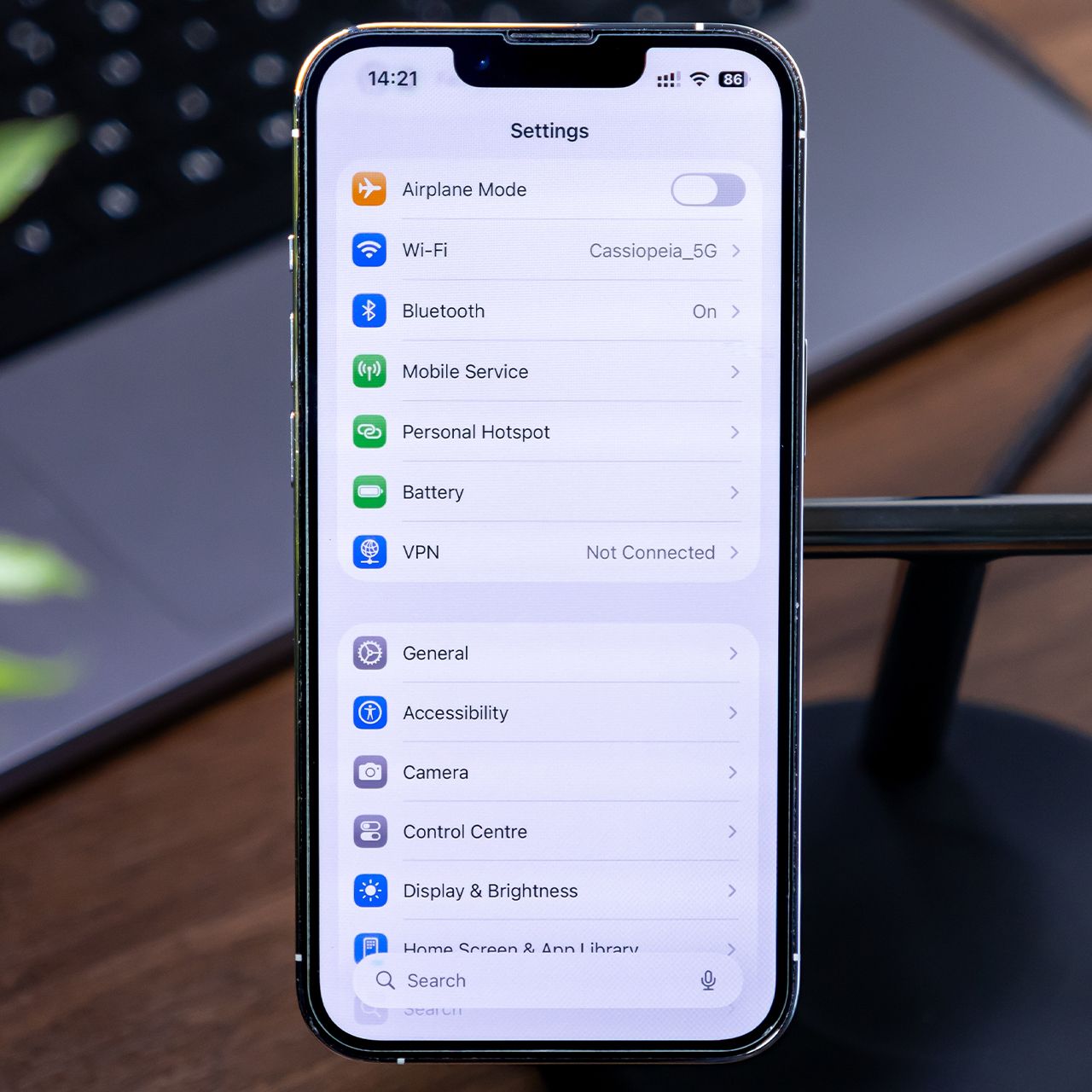
If you’re an iPhone owner, you know how frustrating it can be when your device begins to run super slow.
Though there are a multitude of things that can cause an iPhone to start lagging, something that many people tend to ignore is the settings on their phone. When certain settings are turned on or off, they can easily have an impact on how quickly an iPhone functions. Read more about four settings tech pros say can cause your iPhone to run slower when turned on or off below.

Women Are Swapping Their Boring Water For This Ice Pop Electrolyte Mix!
1. Adaptive Power (When Turned Off)
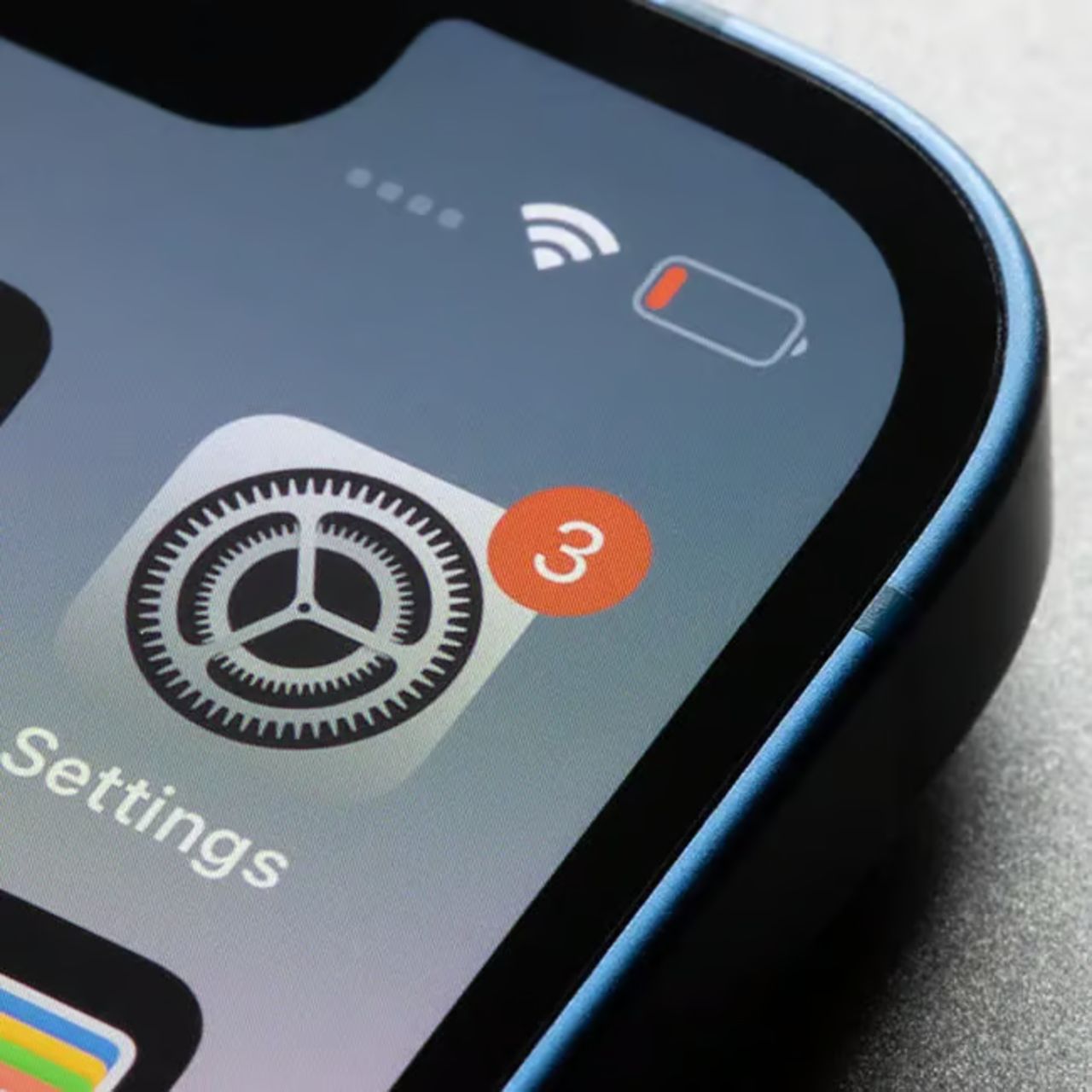
An iPhone's battery life and how it functions run hand in hand, oftentimes, something people tend to forget about. One of the best things you can do is switch Adaptive power from off to on, so you can help out your battery and keep things running smoothly.
"If extending battery life is your major concern, switching on Adaptive Power is one way to get more performance from your device without impacting usability," explains tech pro Aimee Simpson. "With your device getting to know your usage patterns, it makes minor adjustments like lowering screen brightness and limiting background tasks to save power. Best of all, this setting doesn't throttle performance when you need peak performance, like capturing video or playing games. And because this setting functions automatically in the background, users don't have to worry about managing it on the move."
2. Reduce Motion (When Turned Off)
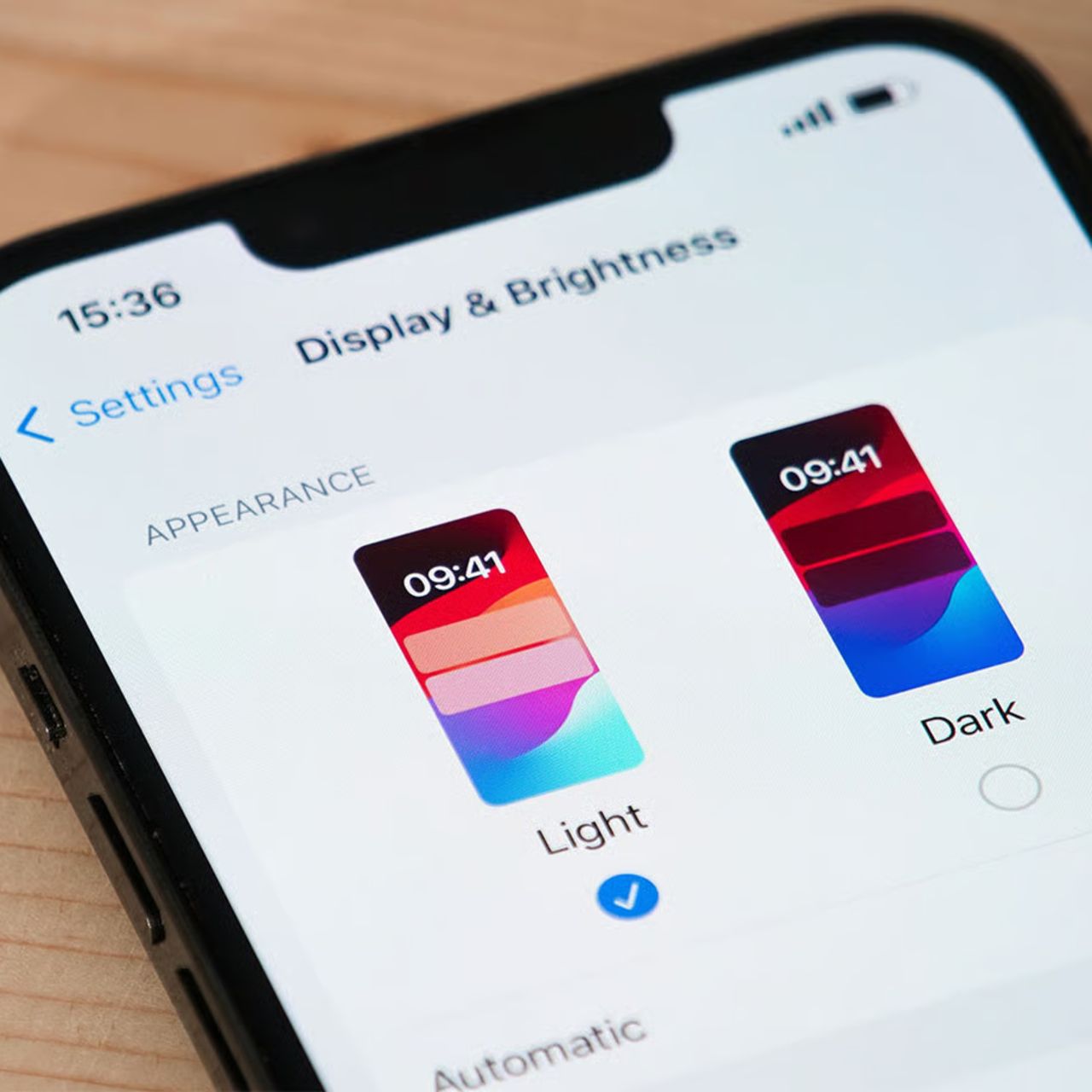
An iPhone's display takes a bigger toll on how it functions overall, which is why it's best to use optimizing settings to ensure it's not causing your device to slow down. Turning on Reduce Motion is one of the ways you can do that.
"This disables many of the visual 'parallax' effects and animations (like a special effect when opening apps) that make the iPhone UI feel smooth but actually require extra GPU power," notes tech expert Abbie Richie. "Turning this on can make the interface feel much faster and more responsive, especially on older models."
3. Background App Refresh (When Turned On)
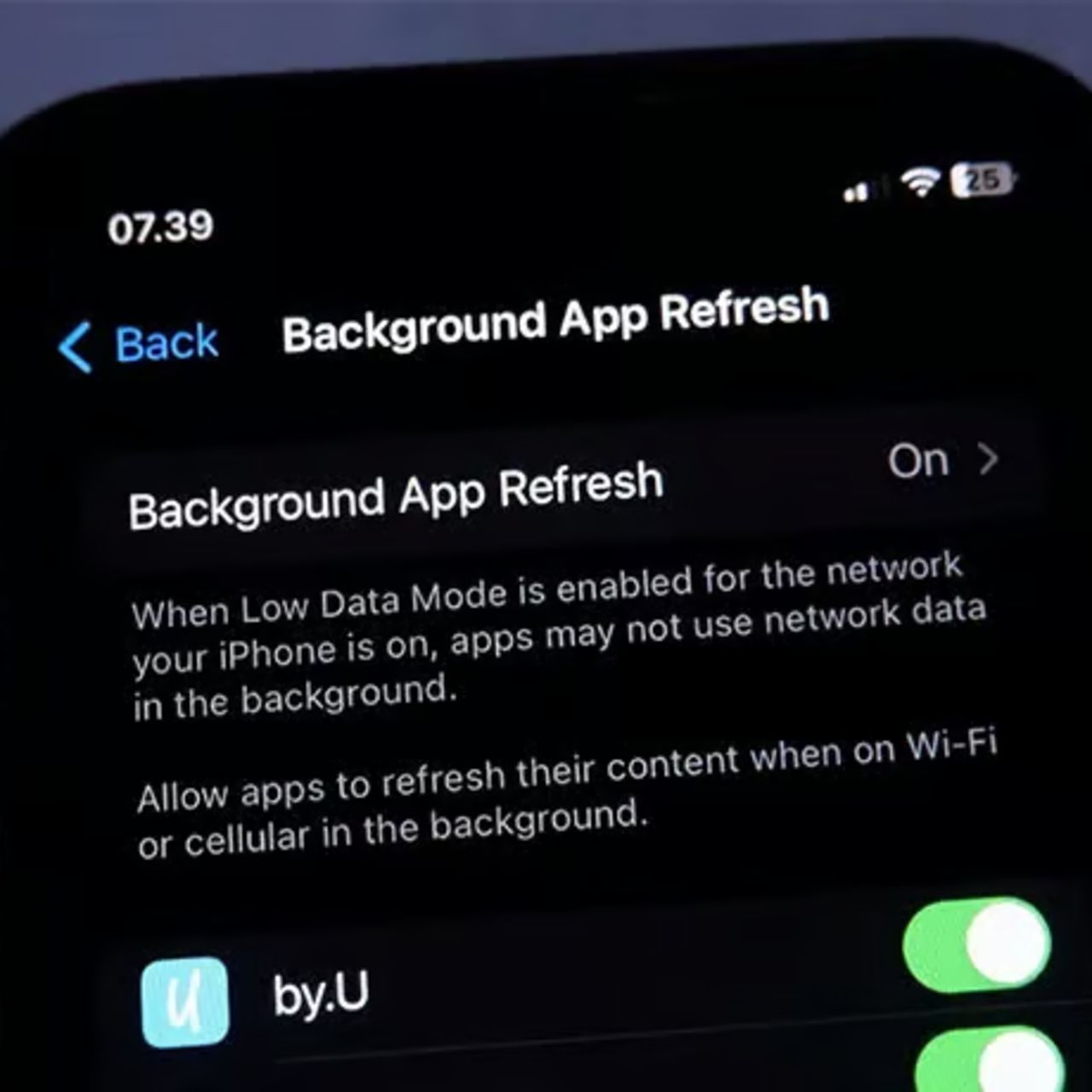
One of the most well-known settings in the tech world is Background App Refresh, as it can make a world of difference in your phone's run speed, as it takes care of any apps that are doing work in the background.
"Many apps constantly update themselves with fresh content in the background, even when people aren't actively using them," says Simpson. "As you might expect, this can use substantial battery life for little improvement in user experience. By switching off the Background App Refresh setting, people can control which apps update automatically, improving performance and battery life. You might keep the setting on for frequently used apps like Mail and fitness trackers, but in most cases, having apps refresh in the background is not necessary at all because they update almost instantly when you open them again."

4. Reduce Transparency (When Turned Off)
Similar to Reduce Motion, turning on Reduce Transparency can also make a difference in your phone's running speed. It'll simplify any animations on your iPhone that aren't necessary for functioning and save you some power.
"In recent years, iOS has been moving towards more transparent UI elements, known as 'liquid glass', with the latest operating system heavily using the effect," adds Simpson. "However, this increased visual processing undoubtedly affects battery life and performance, while some iPhone users simply find it difficult to read and navigate. Instead, you can turn on the Reduce Transparency setting, which simplifies UI animations and has been shown to improve battery life. And for those who just prefer a less frosted glass look, this is a handy feature for your device too."