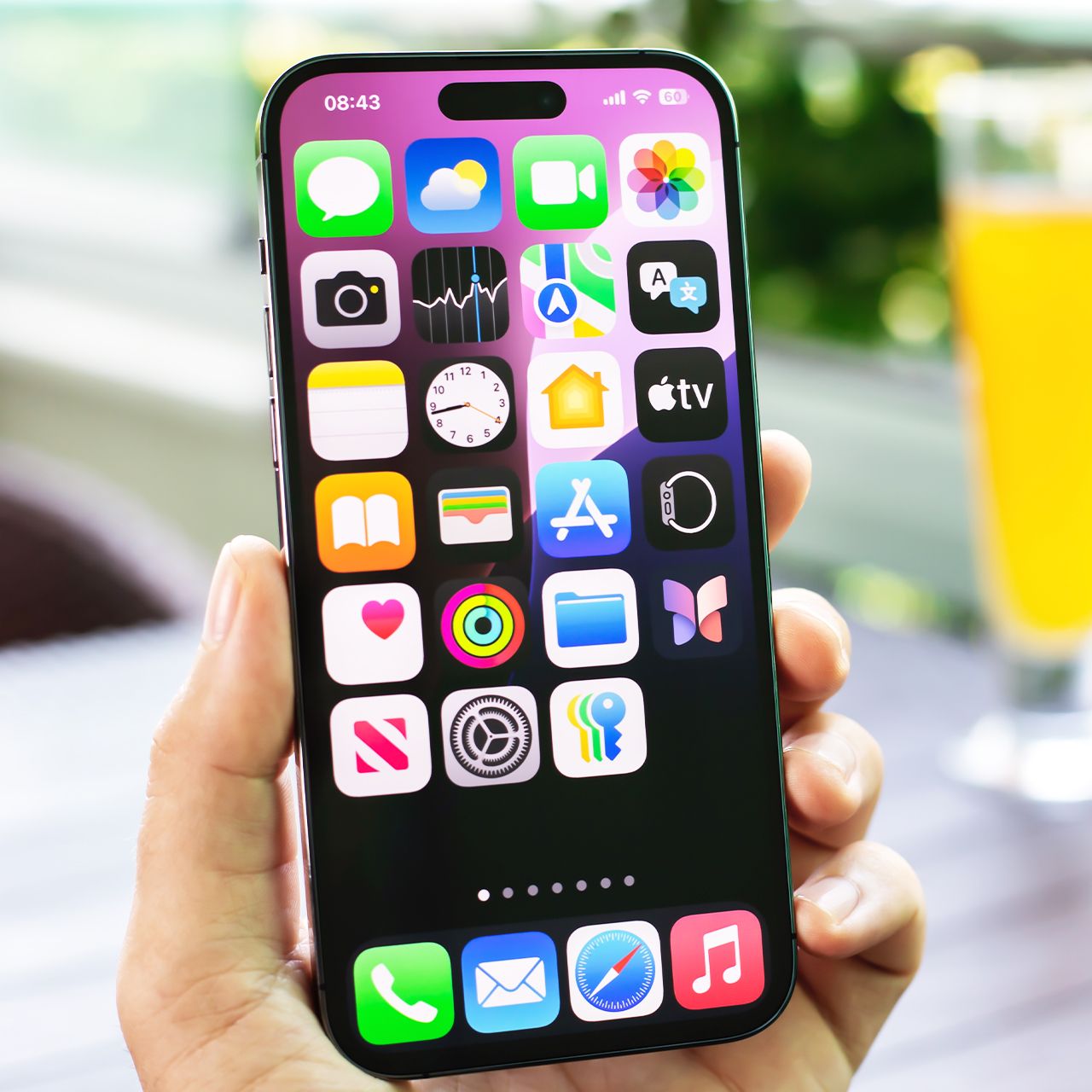





Have you ever felt the pressure of getting a ‘low storage’ notification on your iPhone and suddenly begin deleting a bunch of pictures and videos?
When those notifications start to pop up, it can be really easy to feel like one of the main things you need to do is clear out your photo album. However, that runs the risk of having to delete precious memories and things you might not want to let go of. Instead of immediately resorting to that option, there are other things you can do to clear up some room. Read more about two of them below.

Women Are Swapping Their Boring Water For This Ice Pop Electrolyte Mix!

1. Delete Your Largest Apps
So often, people associate full storage on iPhones with photos and videos. After all, some of these files can take up some room, especially if the videos are long and the photos are of higher quality. However, people tend to forget just how much of an impact apps can have on their phone's storage. Therefore, deleting and/or offloading the apps that take up the most storage on your device can help tremendously.
"Go to Settings > General > iPhone Storage and check which apps are taking up the most storage," tech expert Nelson Aguilar for CNET. "Certain built-in apps, such as Photos and Messages, can't be offloaded, so be warned. If you find a sizable app you want to offload, tap on it and hit Offload App. Wait a little bit, and the app should then be removed offline, while your documents and data will stay saved on your device."

2. Review Large Attachments
If you're a person who likes to exchange lots of photos, videos, and files with your friends and loved ones via your Messages app, then there's a good chance you frequently have to find ways to clear your storage or get 'storage full' notifications. However, you can actually clear all of those files and attachments you get via text without removing them from your camera roll.
Go to Settings > General > iPhone Storage and scroll down until you see Review Large Attachments. From there, you can go through all of the photos and videos exchanged in your Messages app. It's suggested that, in order to free up the most storage, you delete all of them, as if they're photos you've saved to your Camera Roll or sent from your gallery; they will not be erased from there.