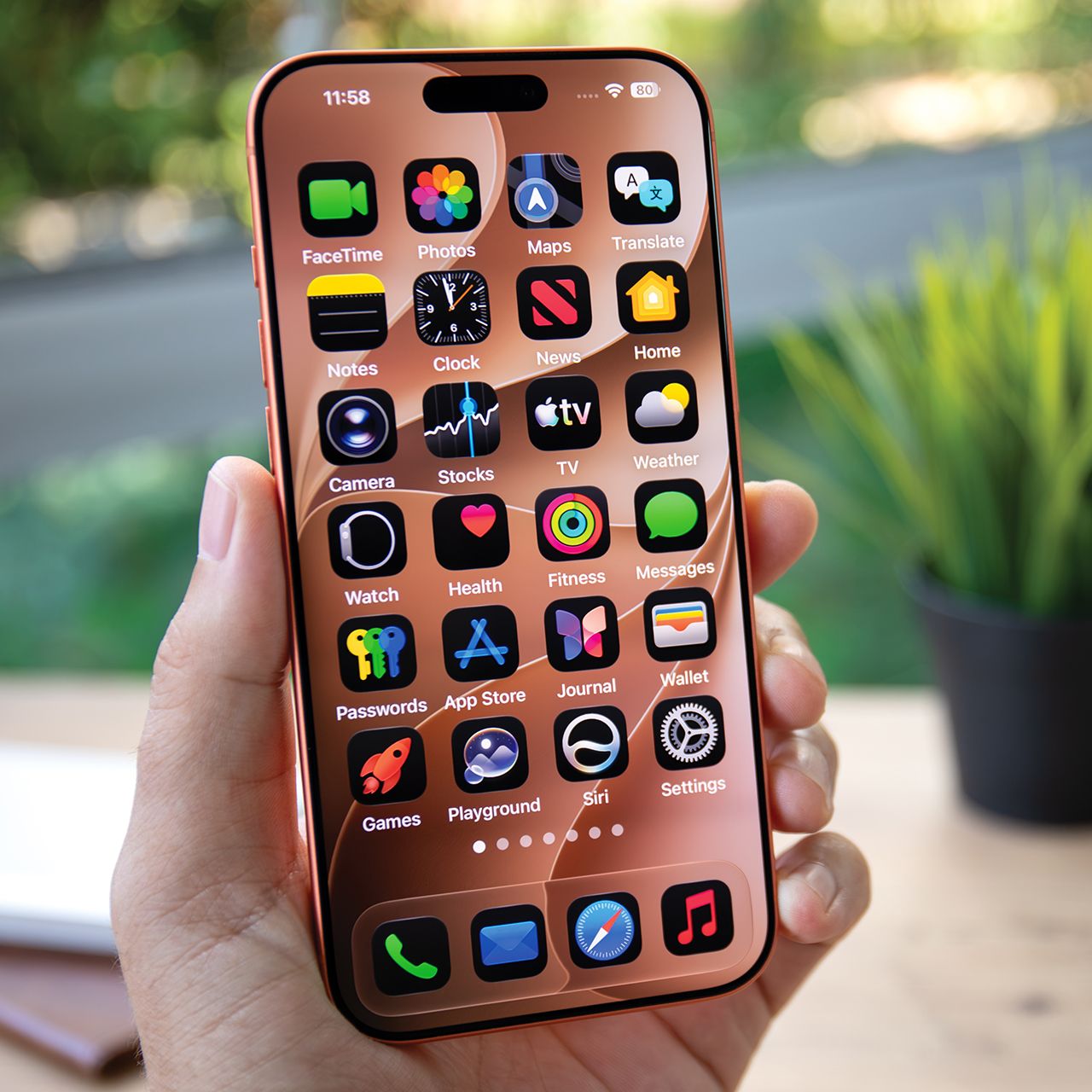





Having an iPhone can be great, but it can also get really irritating when its battery seems to always be draining.
Sometimes it can feel like no matter how often you charge your iPhone, it continues to drain quickly throughout the day, which can cause a lot of anxiety and frustration. Aside from keeping up good charging habits, it’s also important to take a look at your settings, as there are probably some that you should be paying attention to. We spoke to a tech pro about 2 ‘hidden’ iPhone battery settings you should not ignore in order to make your battery life last as long as possible. Read more about them below.

Women Are Swapping Their Boring Water For This Ice Pop Electrolyte Mix!

1. Adaptive Power
One of the easiest ways to save battery power throughout the day on your iPhone is to ensure that the Adaptive Power setting is turned on, as this feature ensures your device adjusts itself throughout the day to preserve power.
"If extending battery life is your major concern, switching on Adaptive Power is one way to get more performance from your device without impacting usability," says tech pro Aimee Simpson. "With your device getting to know your usage patterns, it makes minor adjustments like lowering screen brightness and limiting background tasks to save power. Best of all, this setting doesn't throttle performance when you need peak performance, like capturing video or playing games. And because this setting functions automatically in the background, users don't have to worry about managing it on the move."

2. Reduce Transparency
Some iPhone users fail to realize just how big an impact their iPhone's display can have on its battery life, and the Reduce Transparency setting can help minimize just how big that impact is throughout your day-to-day phone use.
"In recent years, iOS has been moving towards more transparent UI elements, known as 'liquid glass', with the latest operating system heavily using the effect," explains Simpson. "However, this increased visual processing undoubtedly affects battery life and performance, while some iPhone users simply find it difficult to read and navigate. Instead, you can turn on the Reduce Transparency setting, which simplifies UI animations and has been shown to improve battery life. And for those who just prefer a less frosted glass look, this is a handy feature for your device too."