





If you’ve gotten a notification that your iPhone is running out of storage, it’s time to reflect on some of the things that could be hogging your device’s valuable space.
Running out of storage on your iPhone can be a major headache, especially when you’re trying to download a new app, take a photo, install a software update, etc. While it may seem like deleting a few photos from your camera roll is the easiest solution, many users aren’t aware of which files and apps are taking up the most space. Tech experts say there are a few things worth clearing out if your iPhone storage is constantly full. Read more about three of them to make some room below.

Women Are Swapping Their Boring Water For This Ice Pop Electrolyte Mix!
1. Unused Apps
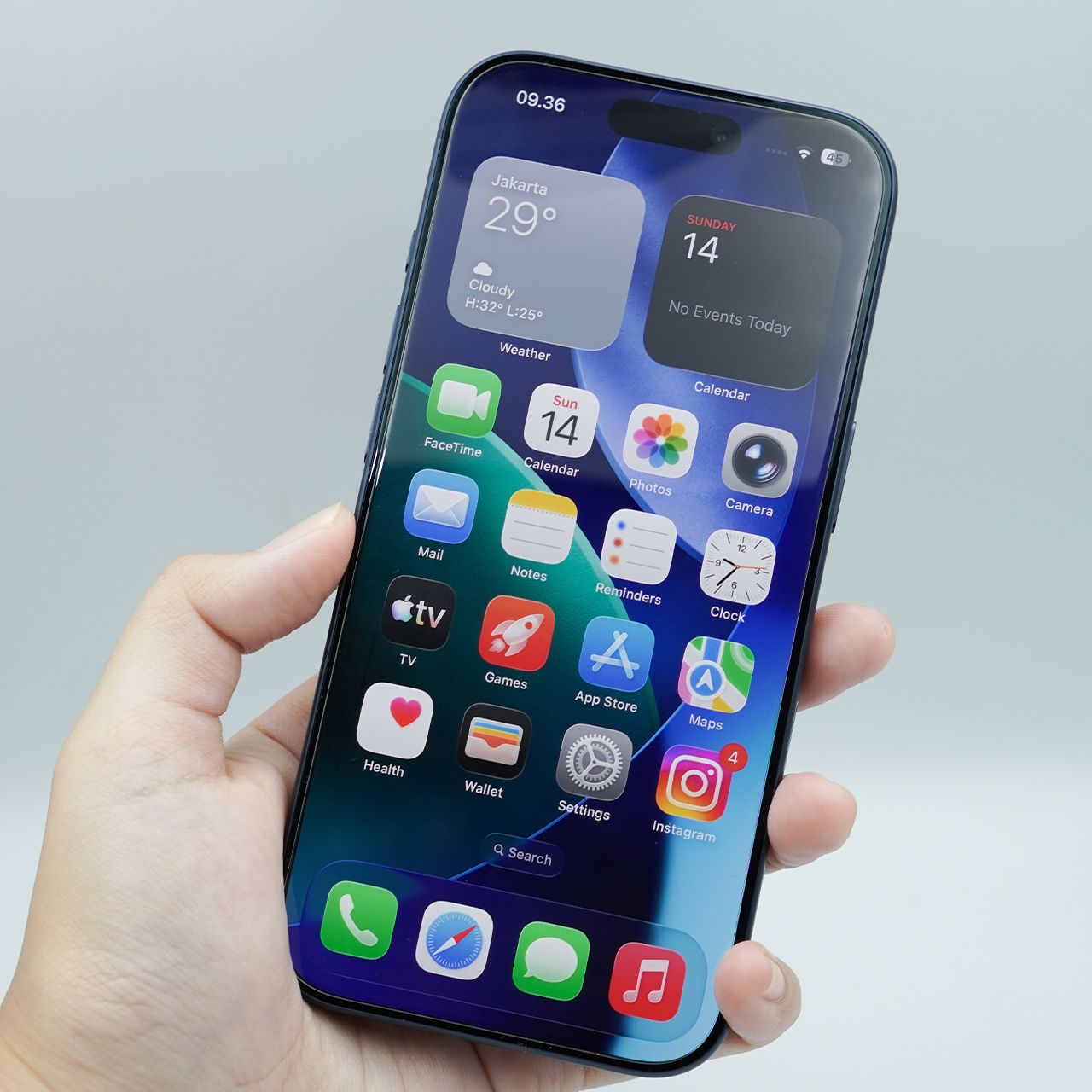
If you have apps sitting on your iPhone that you rarely or never use, offloading them can be an easy way to gain some storage without permanently losing their data. The Offload Unused Apps feature removes the app but holds onto its documents and data, meaning you can reinstall it down the road if you decide you need it again, making it a great choice for those who have anxiety about deleting certain apps.
"Apps are often one of the biggest storage drains we see, particularly games, social media and video apps," says tech pro and smartphone repair specialist James Waterston. "I'd start in Settings > General > iPhone Storage, because Apple shows exactly how much space each app is consuming. If there's an app you rarely use, offloading it is a good first option because it removes the app itself while retaining its documents and data, so you can reinstall it later without necessarily starting from scratch."
3. App Suggestions
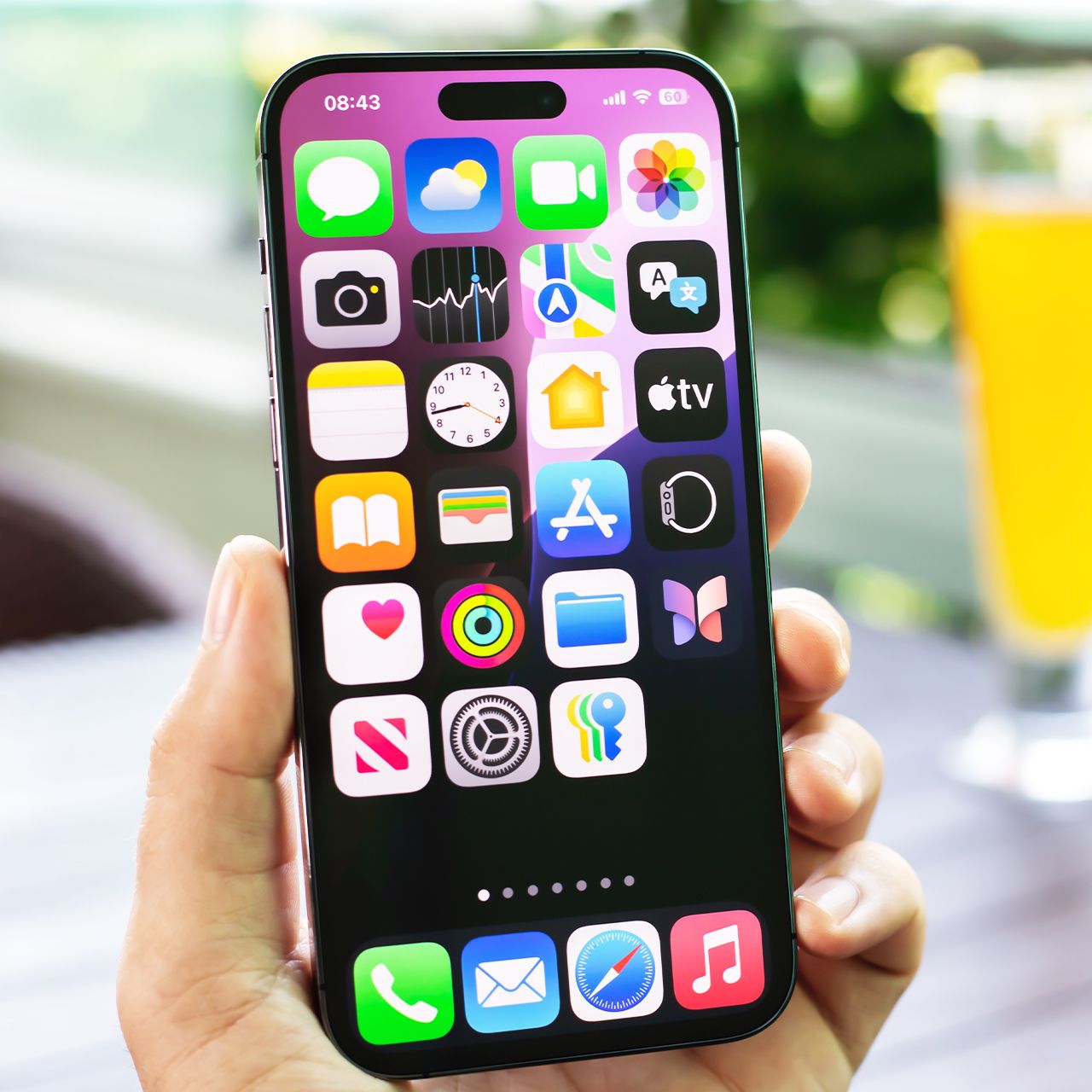
iPhone's App Suggestions feature can recommend apps based on factors like your routines, location, and the time of day, helping you quickly access apps you’re likely to use. While convenient, features that continually use background activity and location data can contribute to battery drain over time.
"Suggested Apps, introduced in iOS 8, help your phone figure out where you are and what you are nearby using your location information," explains tech pro Luke Ford. "It also suggests which apps, either installed on your phone or new on the App Store, might be worth your while based on that location information. This does, however, use extra battery life because it must constantly be communicating with the App Store, checking your location, etc. This used to be controlled in the Settings app in iOS 10; it moved into Notification Center."
Here’s how to disable it in iOS 10: Swipe down from the top of the screen to open Notification Center > Today view > Edit > Siri App Suggestions > Remove.

6. Using Your iPhone While Charging
Sometimes, it can be difficult to leave your iPhone completely alone and untouched while it's charging. Perhaps you need to use it for work or to make an important call. However, if you can, leaving your iPhone to rest as it charges can give your battery the rest and proper recharge it needs to stay healthy for longer.
"Using the phone heavily while it's charging causes the battery to heat up from both charging and active use simultaneously, which is worse than either alone," notes tech author Tyler Torres. "If you need to use your phone while charging, keep it out of a case, since cases trap heat and slow the phone's ability to dissipate it."
Let me know if you need anything else!