





If you’re an iPhone user, you might assume that there’s not much else you can do to improve your user experience, but that’s not exactly true. After all, there are a lot of settings at your disposal that can help change the game.
iPhones come with plenty of useful features tucked away in the settings menu, but some can be easy to overlook. From freeing up valuable storage space to making it easier to recover a lost device, a few simple settings changes can make your iPhone more convenient and help you get more out of the device you already own. Read more about the three settings tech pros suggest adjusting below.

Women Are Swapping Their Boring Water For This Ice Pop Electrolyte Mix!
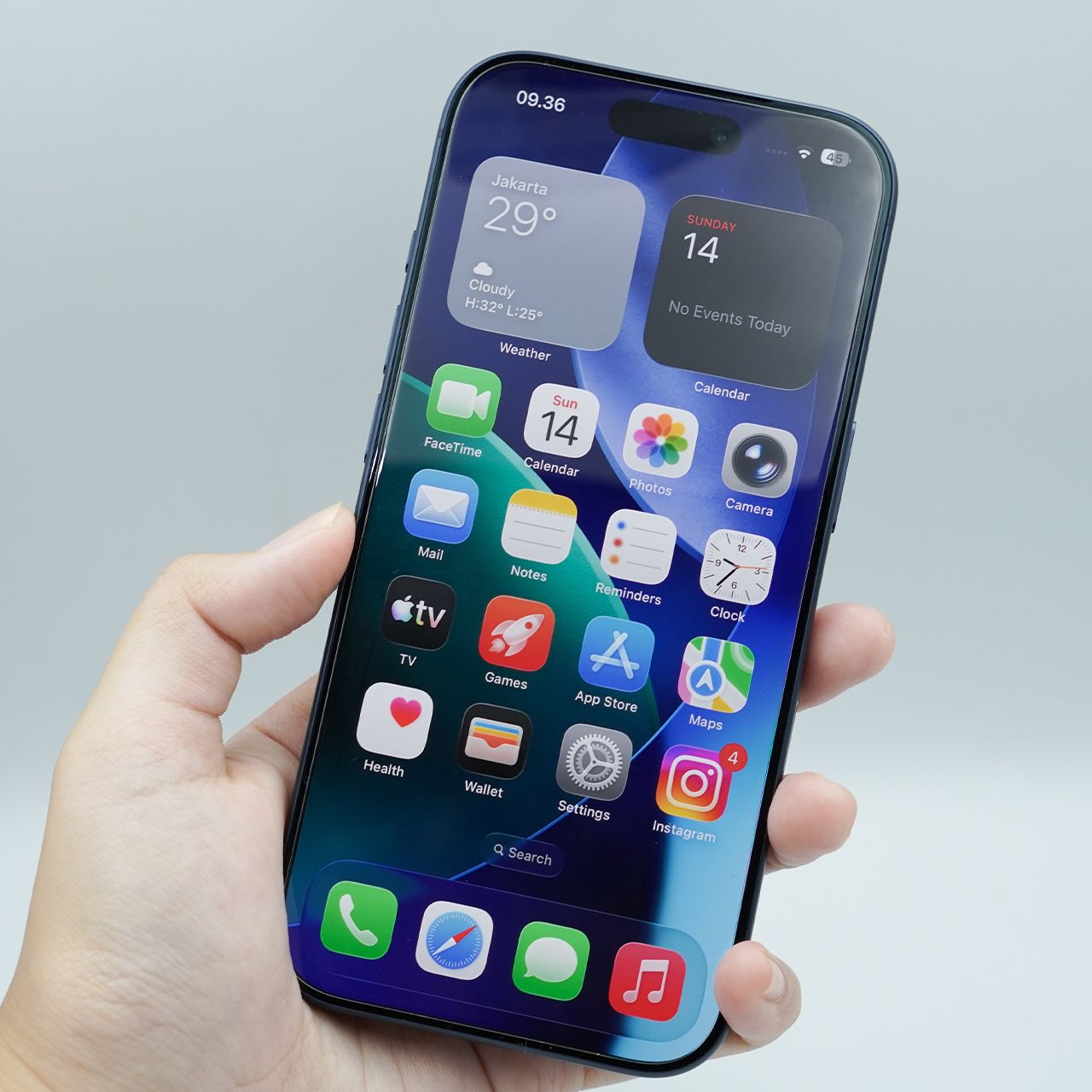
1. Delete Or Offload Unused Apps
If your iPhone is constantly warning you that storage is almost full, checking your unused apps can be an easy place to start. The iPhone's storage settings let you delete apps you no longer need or offload apps to free up space while keeping their documents and data, making this a simple way to reclaim storage without manually going through every file on your phone.
"Apps are often one of the biggest storage drains we see, particularly games, social media, and video apps," says smartphone repair specialist and tech pro James Waterson. "I'd start in Settings > General > iPhone Storage, because Apple shows exactly how much space each app is consuming. If there's an app you rarely use, offloading it is a good first option because it removes the app itself while retaining its documents and data, so you can reinstall it later without necessarily starting from scratch."
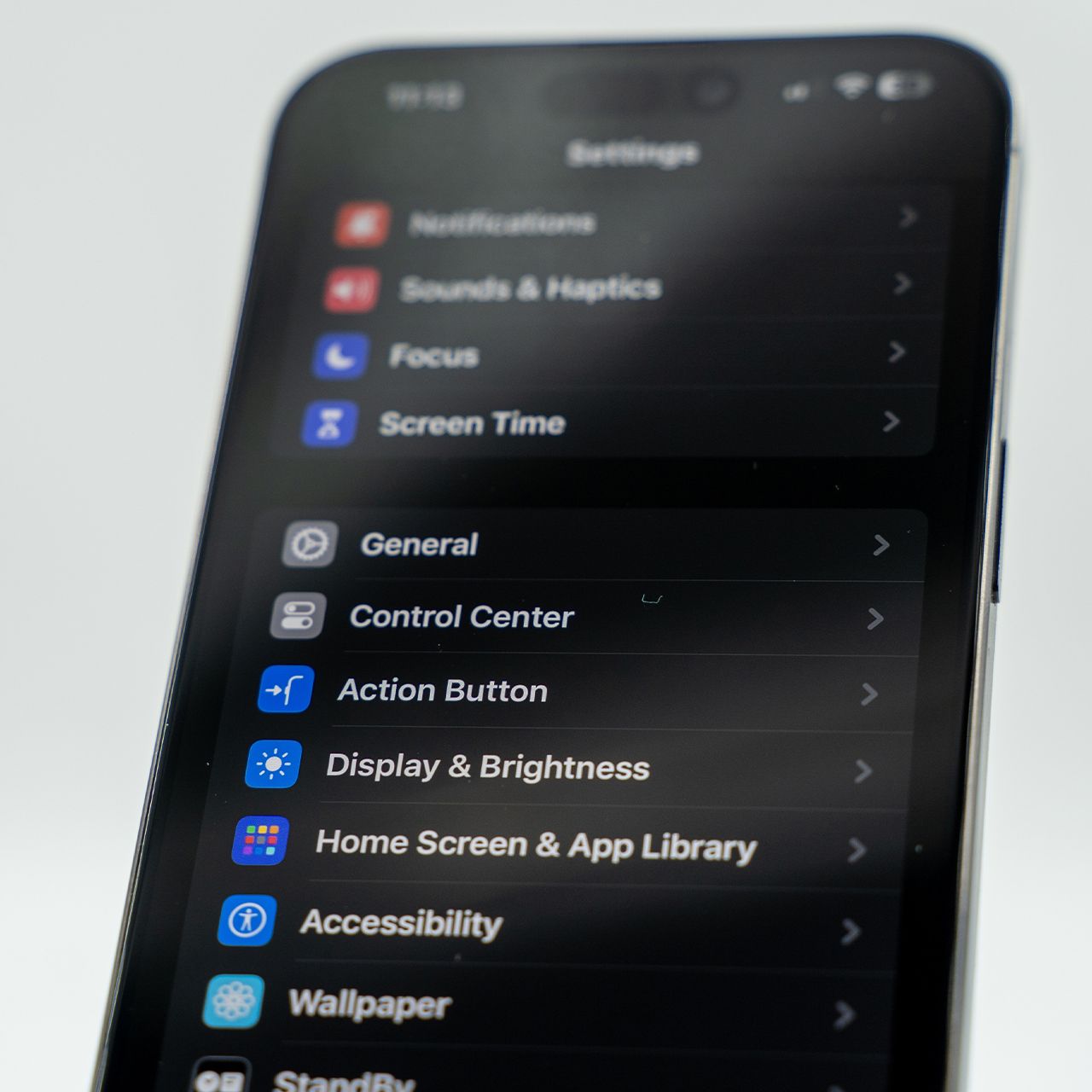
2. Delete Large Attachments
A common issue for those with full storage is old text messages taking up room, but there is a way to shave down that data without getting rid of all your old messages. Large attachments sent through Messages, including photos, videos, and other files, can accumulate over time, so reviewing and deleting these attachments can help clear out unnecessary clutter and free up space without having to delete important apps or other content.
"Years of photos, videos, GIFs, and other attachments sent through Messages can quietly build up into a significant amount of storage," adds Waterson. "Rather than deleting important conversations wholesale, go to Settings > General > iPhone Storage > Messages and review the largest attachments first. It's usually possible to recover a useful amount of space by removing a handful of old videos without losing years of messages you may want to keep."

3. Find My iPhone (with Send Last Location)
Turning on Find My iPhone can be especially helpful if your device is ever lost or stolen. In addition to helping you locate your iPhone through the Find My network, the "Send Last Location" option can automatically send your device's last known location to Apple when its battery is critically low, possibly giving you a better chance of figuring out where you left it.
"Having spent 25 years managing a data recovery company with operations in over 150 countries, I've seen how critical enabling Find My iPhone with Send Last Location on the device in question at the moment of a catastrophe can be," notes software engineer and tech expert Chongwei Chen. "The feature both prevents and mitigates much worse outcomes than most security vendors realize, and not only does it help locate lost devices better, it lets you erase their content if they can't be recovered."