



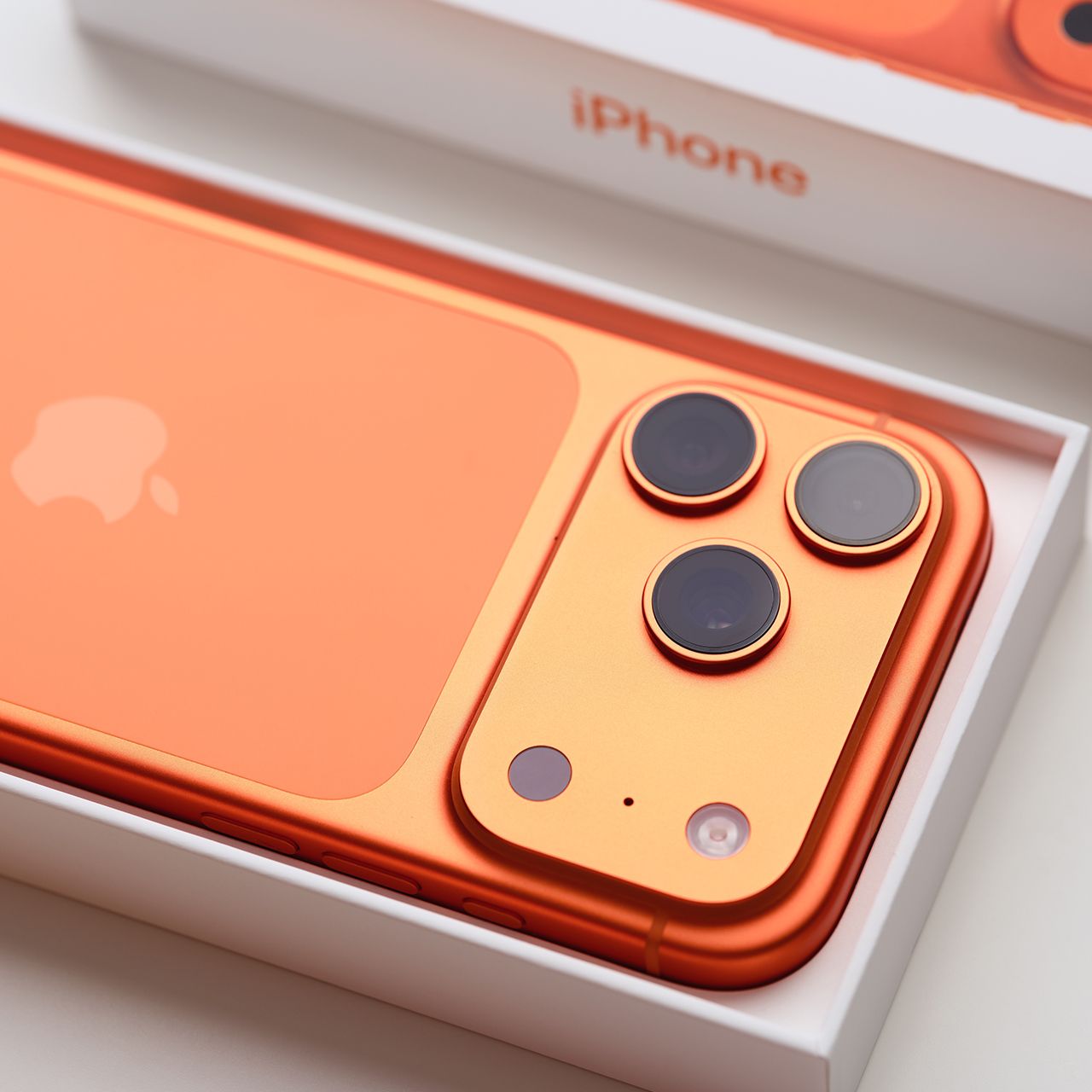
iPhones can be an extremely convenient and enjoyable tool, that is, until they begin to slow down on you, and you can’t quite figure out why.
When an iPhone begins to lag, it could be happening for a multitude of reasons. However, before epankicking and assuming you need to buy a new one ASAP, it’s important to evaluate a few things first. This includes your settings, what’s selected, and what’s not. Using info from tech experts, we’re listing two iPhone settings that can help fix a slow device. Read more about them below.

Women Are Swapping Their Boring Water For This Ice Pop Electrolyte Mix!
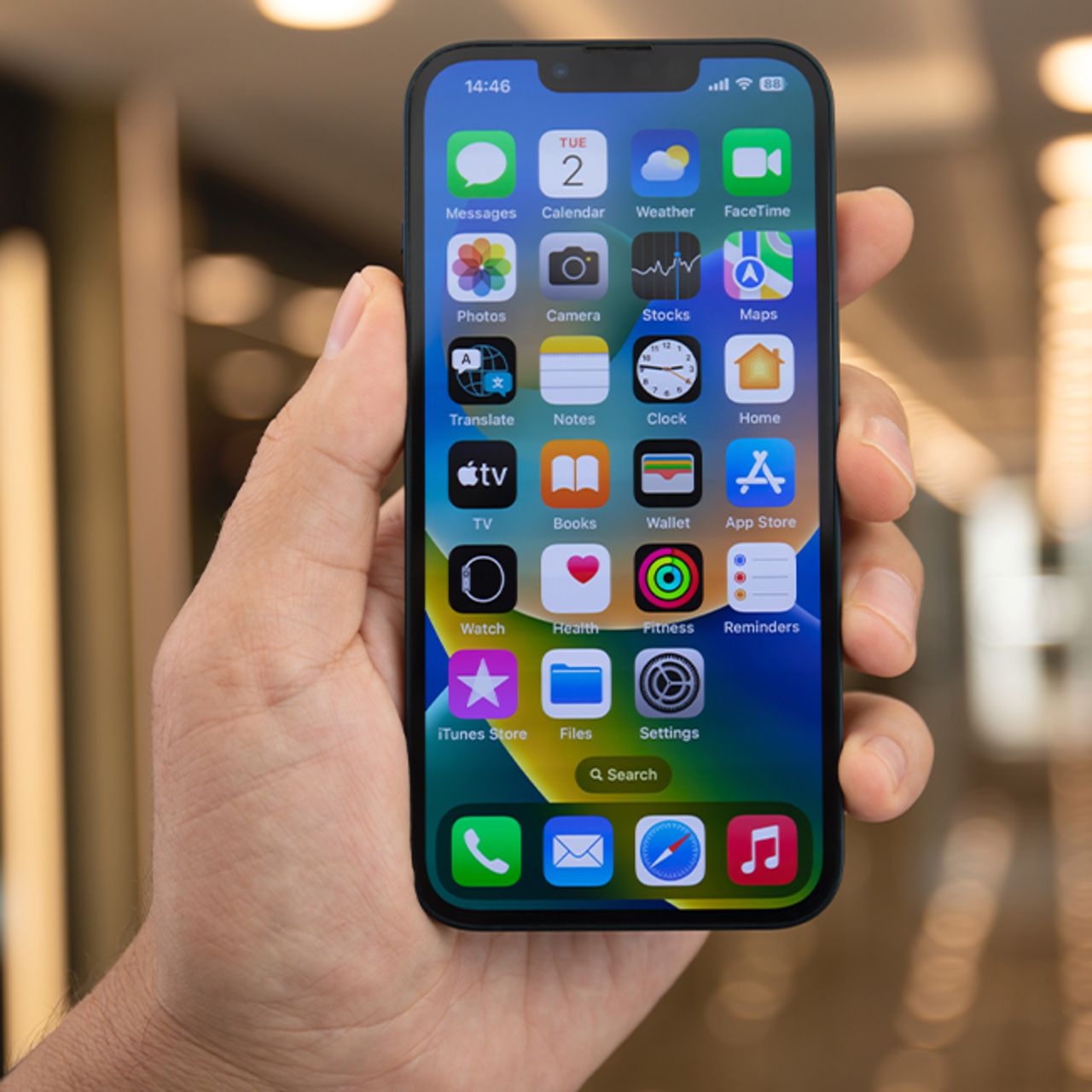
3. Voice Memos
Some people can't imagine using their iPhone without their Voice Memos app, as they might use it for note-taking, rehearsing something, submitting recordings, etc. However, there are also a large number of iPhone users who don't ever really use it, and any old recordings sitting in the hardly-used app take up more space than you might imagine.
People are surprised by voice memos because they appear to be innocuous," says tech pro Ankush Chowdhury. "However, I've come across phones that have hours of unintentional recordings from pocket use. About 30 MB is needed for each hour of audio, and some customers had 20+ hours saved without realizing it."
2. Reduce Motion
Similarly to Background App Refresh, in general, an iPhone's display can also dramatically change its performance. When there's too much going on with your device's display, utilizing a lot of fancy features, it can slow down, so tech pros suggest turning this setting on.
"This disables many of the visual 'parallax' effects and animations (like a special effect when opening apps) that make the iPhone UI feel smooth but actually require extra GPU power," explains tech pro Abbie Richie. "Turning this on can make the interface feel much faster and more responsive, especially on older models."