





Be honest: how slow is your iPhone right now? Is it crawling instead of walking (when it should actually be running for the price you paid for it?). When your phone begins to slow down, takes more time to load documents and refresh content in apps, and just seems like it’s not functioning well at all, it’s important to take steps to fix the situation. If your phone is very old or the battery needs to be replaced, there may not be many options that will work well. But if you’re like so many others struggling to understand why your reasonably modern phone is acting like it’s 100 years old, you need a few good tips.
Here are seven tips from tech pros on how to troubleshoot your device when it slows to a crawl.

Women Are Swapping Their Boring Water For This Ice Pop Electrolyte Mix!

1. Update iOS
If you aren't regularly updating your iOS software, your phone is going to be slow, plain and simple. Updating your phone not only speeds it up but can fix bugs and optimize your device for better performance.
2. Clear Storage Space
All of the storage space that your phone is using for resource-intensive apps (like social media) and to take a number of photos and videos adds up. And when it reaches peak capacity, your phone slows down and becomes less efficient. Free up space by going to Settings > General > iPhone Storage to find out what's taking up the most space — delete apps, old messages, old videos, and files you never use.
3. Restart Your iPhone
It's the simplest solution, and often the only one you need: before you go on a wild goose chase after ways to boost your phone's speed, turn it off and on again. A host of issues can be resolved by simply restarting your phone.
4. Turn Off Background App Refresh
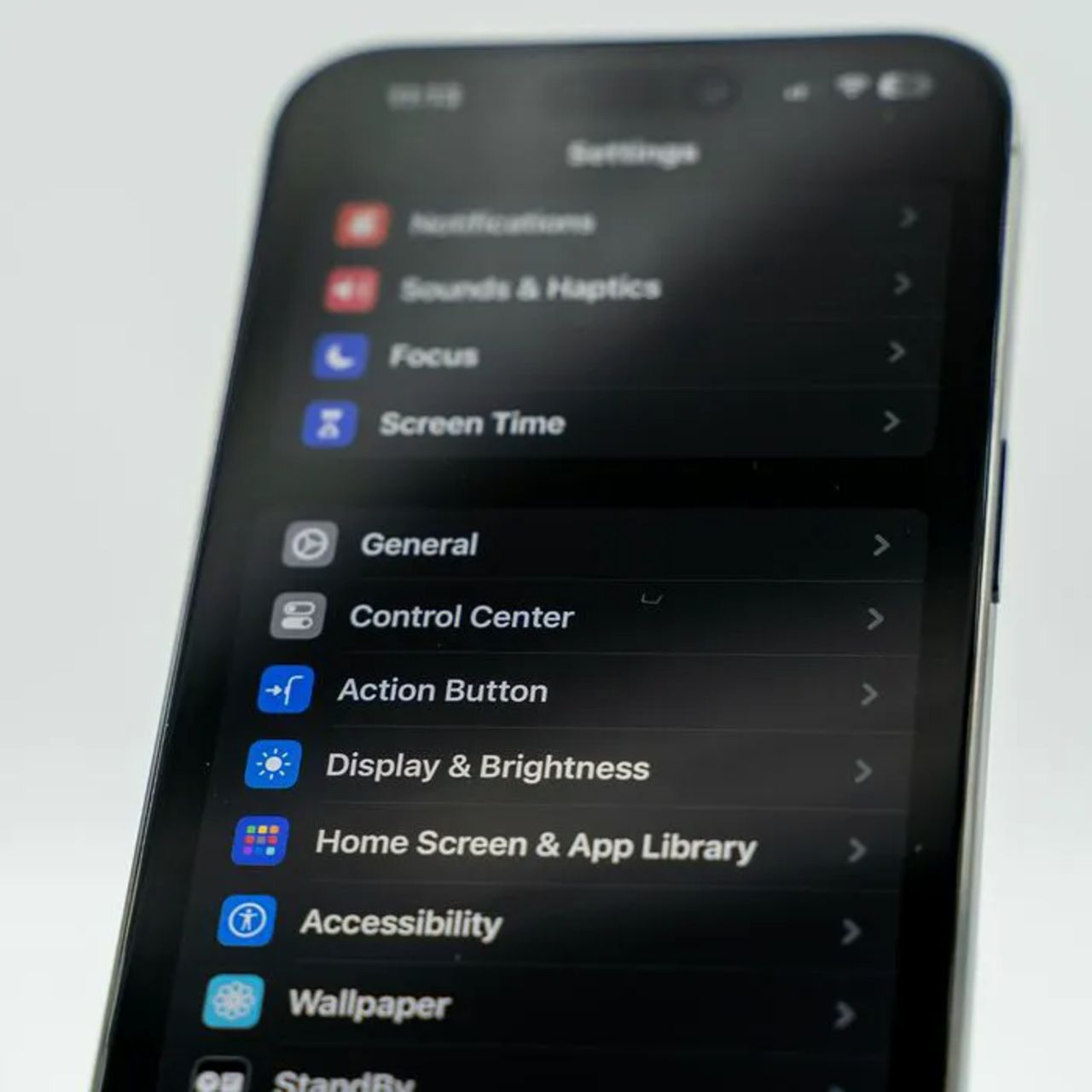
When Background App Refresh is enabled, your apps will consistently update so that you are always able to access fresh content. But this setting does a number on your phone's speed. Turn it off by going to Settings > General > Background App Refresh.

5. Close Apps
Apps that are in the background can consume valuable resources and slow down your phone. Swipe up from the App Switcher and then swipe up on all of the apps you aren't using.
6. Disable Transparency Effects and Motion
Visual effects can look cool on your phone, but can slow your device down. Go to Settings > Accessibility > Reduce Motion to enable this, and then head over to Settings > Accessibility > Increase Contrast to reduce transparency and motion effects.
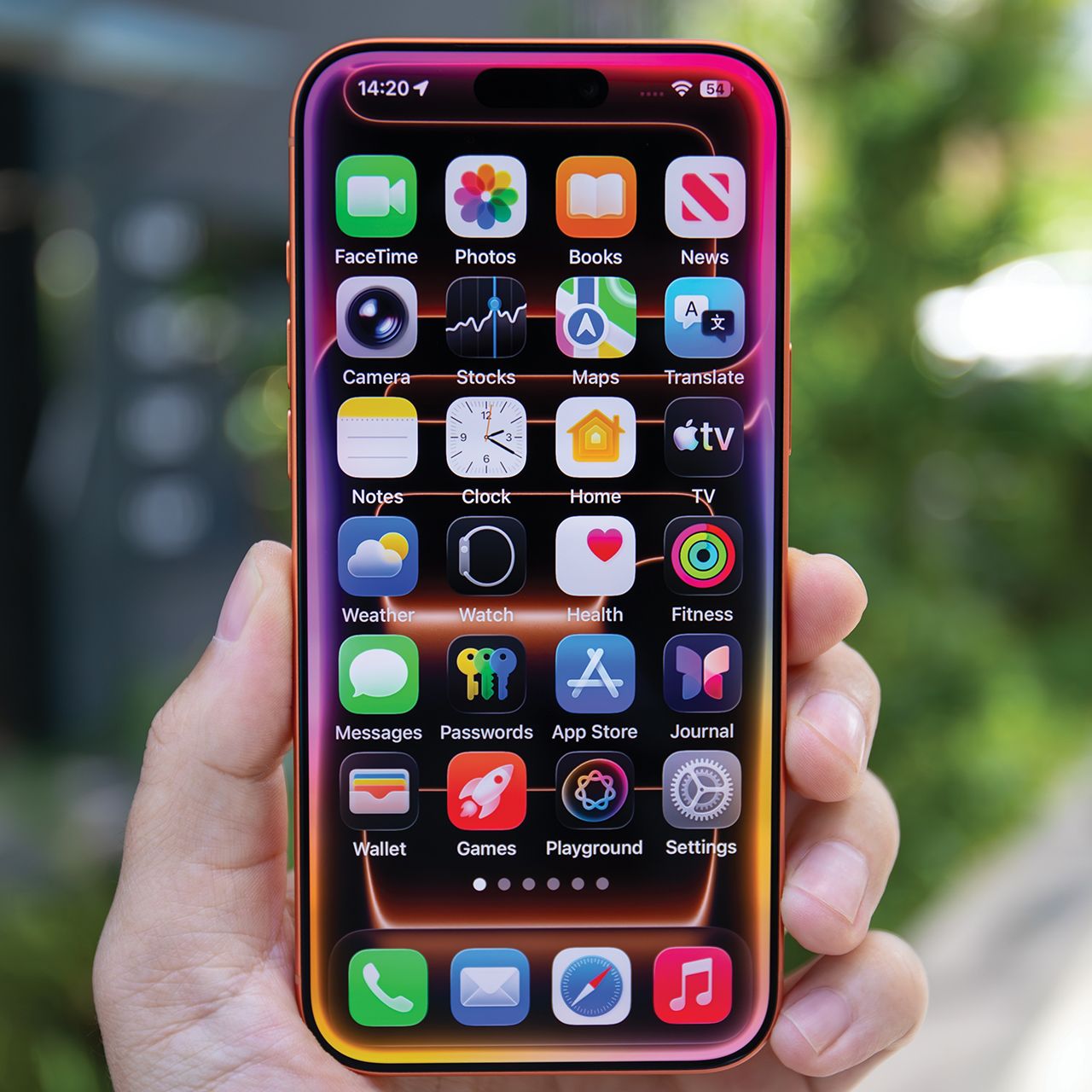
7. Delete Unused Streaming Apps/Their Downloads
With streaming apps like Netflix, HBO Max, and more being so popular, lots of people have them downloaded to their phones so they can watch their content from anywhere. For instance, many will use a streaming app's 'download' feature to save a few episodes of a show to their phones before a flight. However, these apps and their downloads can take up a lot of storage space as well as slow down your device.
"Apps like Netflix, Spotify, and YouTube may store downloaded shows, music, and cached files," adds tech expert Calvin Brown. "I'd start by removing old downloads, then delete any streaming apps you're no longer using."