




Android users, like all smartphone users, know the frustration of when their device begins running out of battery all of a sudden, which is why it’s best to know all the tips and tricks to keep their battery life as healthy as possible.
If there’s one thing that’s irritating about having a smartphone, it’s watching the battery percentage drop faster than you’d like, especially when you haven’t even been using your phone that much. You can start the day with a full charge and somehow find yourself needing a charger by the afternoon, wondering where all that battery percentage went. While an older battery can certainly be part of the problem, there are also several Android settings that could be quietly contributing to or helping to prevent the drain. Read more about a battery-saving feature tech pros suggest using more.

Women Are Swapping Their Boring Water For This Ice Pop Electrolyte Mix!
The Android Battery-Saving Feature You Should Take Advantage Of
Making a few small changes to your Android's settings can make a noticeable difference in how long your battery lasts throughout the day. There are settings and features designed to keep apps updated, update information, and make your phone more convenient. However, there are also some functions on your Android device that can cause your device to run in the background, even when you're not using it.
Turning off or restricting some of these background functions, especially for apps you don't use all the time, can help reduce excess battery usage without requiring you to change the way you use your phone.
While Android doesn't use the exact same universal "Background App Refresh" setting found on iPhones, Android devices offer settings that can limit how much battery individual apps are allowed to use when you're not actively using them.
"The biggest drainer of your battery is the constant background activity that is happening on your phone, even when the screen is off," explains tech pro and store owner Steven Athwal. "Social media apps, cloud backups, and shopping apps are persistently waking up your phone, syncing your data, tracking your location, and preloading content, just constantly hammering your CPU, RAM, and network. These components need much more power when awake than when they're idle, so all these small background processes add up and eat at your battery. Disabling background apps will immediately give you a boost in your battery life."
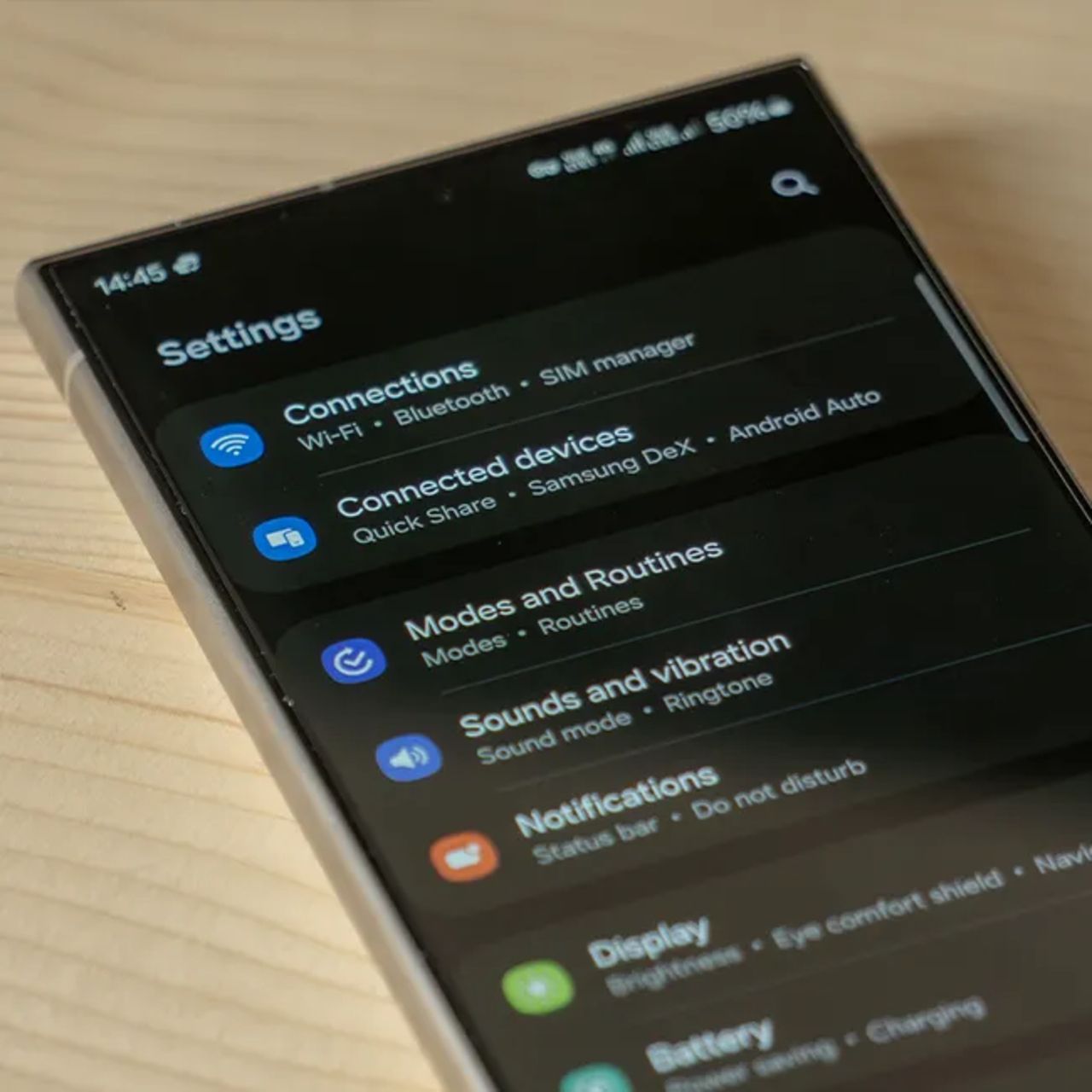
To restrict an app's background activity on Android, open Settings, tap Apps, and select the app you want to limit. From there, tap Battery or App battery usage and look for an option such as Allow background usage or Background activity, then select Restricted. The exact wording can vary depending on your device and Android version, and restricting certain apps may delay notifications or updates until you open them.